Claude Code Desktop Guide: Setup and Best Practices
Learn Claude Code Desktop efficiently: setup, permissions, parallel sessions, worktrees, previews, diff review, CLAUDE.md, security, and when to use the CLI.
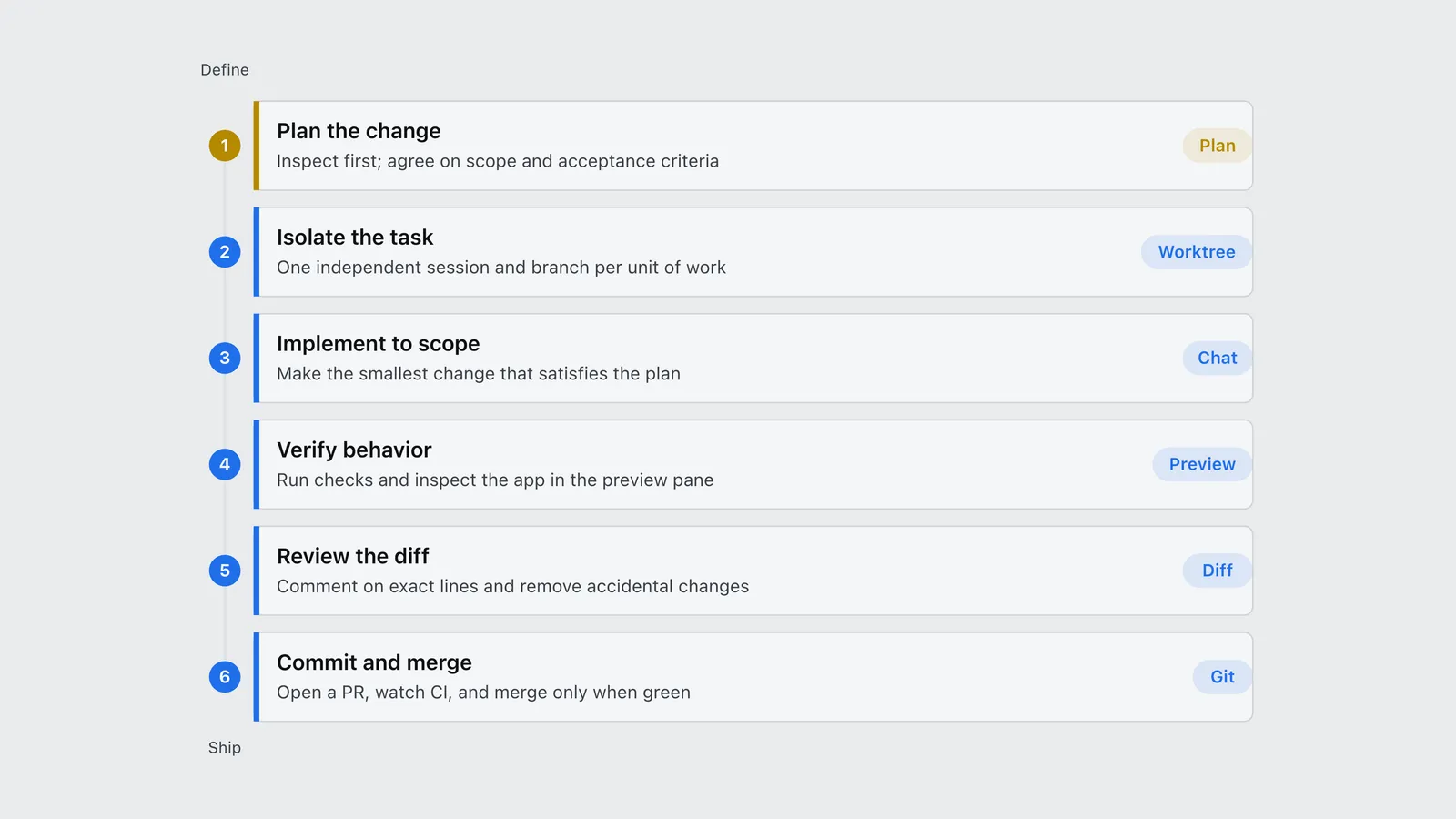
Claude Code Desktop is the graphical version of Anthropic’s coding agent: it reads a project, edits files, runs commands, checks its work, and lets you review the result without living in a terminal. Its real advantage is not that it makes Claude Code easier to install. It is that it turns agentic coding into a visible workflow: parallel sessions in isolated Git worktrees, a plan beside the chat, a live app beside the diff, and a review step before anything merges.
Used well, Desktop feels less like a chatbot and more like a workbench for supervising several small engineering jobs. Used poorly, it becomes an expensive text box that edits too much, asks for too many permissions, and fills its context with a wandering conversation. This guide covers the efficient version: how to set it up, how to shape a task, which permission mode to use, how to run work in parallel safely, and when the command-line interface remains the better tool.
What Claude Code Desktop is
The Code tab in the Claude Desktop app is a visual interface for Claude Code. According to Anthropic’s Desktop reference, each conversation is an independent coding session with its own history, selected project, and code changes. A session can run locally on your machine, in an Anthropic-hosted remote environment, through SSH, or (in supported Windows setups) inside WSL.
That makes Code different from the other two surfaces in the app:
- Chat is for general conversation. It is not the place to hand an agent a local repository and supervise code changes.
- Cowork handles broader background work such as research, documents, and spreadsheets.
- Code is the software-development surface. It understands repositories, edits code, runs tests, works with Git, and exposes the review loop.
Desktop shares the agent engine, project memory in CLAUDE.md, settings, hooks, skills, and most MCP configuration with the CLI, but the interaction model differs. Desktop is optimized for supervising sessions with the chat, plan, terminal, file, diff, and browser preview visible together. The CLI is optimized for terminals and automation.
Requirements and installation
Claude Code Desktop requires a paid Pro, Max, Team, or Enterprise subscription. The app is available for macOS and Windows, with a Linux desktop build in beta as of July 2026. Anthropic provides current installers in its Desktop quickstart. Windows local sessions require Git for Windows; the app includes Claude Code itself, so you do not need to install Node.js or the separate CLI merely to use the Code tab.
The setup sequence is short:
- Install or update the Claude Desktop app and sign in.
- Open the Code tab.
- Choose an environment.
- Select the repository or project folder.
- Pick a model and permission mode.
- Start with a small task in a project you already understand.
Start with a contained bug in a project you understand, so you can judge the result and learn how commands, permissions, and diffs work. If tools such as node or pnpm work in your terminal but not Desktop, check the Local environment editor: the app does not inherit every shell variable. Keep secrets out of prompts and repository files.
Choose the right environment before the model
Desktop asks you to choose Local, Remote, SSH, or another supported environment before a session begins. That choice determines where the code runs, which files and credentials are available, and whether the task continues after you close the app. It is a more consequential decision than which model you select.
| Environment | Best for | Main constraint |
|---|---|---|
| Local | Active development, local tools, private dev servers, fastest feedback | Uses your machine and local credentials |
| Remote | Long-running work, cloud repositories, tasks that should continue after closing the app | Requires a reproducible cloud setup |
| SSH | Repositories on a VM, dev container, server, or special hardware | Remote host must have the required tools and Claude Code |
| WSL | Windows projects whose real toolchain lives in Linux | Keep paths and dependencies inside the chosen WSL environment |
Use Local for active development and Remote when work should continue after the app closes. Give cloud sessions a setup script so dependencies and variables are reproducible. Use SSH when the code or required tooling already lives on another machine. The environment is part of the permission boundary; prefer scoped development credentials over copying broader secrets to a local session.
The efficient Claude Code Desktop workflow
The best Desktop workflow is a six-stage loop: plan, isolate, implement, verify, review, and merge. Each stage removes a different failure mode. Planning catches the wrong approach before edits; isolation prevents sessions from overwriting one another; verification catches behavior that looks plausible but fails; review catches code that passes tests but does not belong.
| Order | Workflow | Lead primitive | When to reach for it |
|---|---|---|---|
| 1 | Plan the change | Plan | Inspect first; agree on scope and acceptance criteria |
| 2 | Isolate the task | Worktree | One independent session and branch per unit of work |
| 3 | Implement to scope | Chat | Make the smallest change that satisfies the plan |
| 4 | Verify behavior | Preview | Run checks and inspect the app in the preview pane |
| 5 | Review the diff | Diff | Comment on exact lines and remove accidental changes |
| 6 | Commit and merge | Git | Open a PR, watch CI, and merge only when green |
1. Start in Plan mode
For any change with design choices, begin in Plan mode. Ask Claude to inspect the relevant code, identify the likely files, explain the approach, name risks, and list the checks that will prove the work is complete. Plan mode keeps the session read-only until you approve implementation, making it the safest place to correct a false assumption.
A useful opening prompt is:
Investigate why password-reset links sometimes expire immediately.
Do not edit files yet. Trace the request from route to token validation,
identify the root cause, and propose the smallest fix.

The plan must include:
- files that need to change
- tests that reproduce the bug
- compatibility or migration risks
- exact commands you will run to verify the fix
The prompt names a symptom, constrains the agent to investigation, and defines what a usable plan contains. “Fix password reset” does none of those things.
Review the plan as if it came from another engineer. Does it touch a suspicious number of files? Is it inventing a new abstraction instead of following the repository? Does “verify” mean a real command, or merely “review the code”? Correct the plan while the cost of changing direction is still a sentence.
2. Keep one task per session
A session should have one coherent goal. A bug fix, its test, and its documentation update can belong together. An authentication refactor, a pricing-page redesign, and a dependency upgrade do not.
Long mixed sessions lose efficiency because context becomes a pile of old decisions, failed attempts, and unrelated files. When the goal changes, start another session. If a useful question branches off the current task, use a side chat: it gets the session context without derailing the main conversation.
3. Give prompts four things
An efficient implementation prompt contains four pieces: the outcome, the relevant context, the constraints, and the acceptance tests.
Add CSV export to the existing invoices table.

Context:
- Reuse the table's active filters and sort order.
- The export endpoint already exists at /api/invoices/export.

Constraints:
- Do not add a new state-management library.
- Follow the existing button and toast components.
- Keep the change limited to the invoices feature.

Done when:
- Exported rows match the filtered table.
- Loading and error states are visible.
- Existing tests pass and the export interaction has a new test.
- Preview the page and verify the mobile layout.
This is more effective than an elaborate persona or a page of motivational instructions. Claude can inspect the code for details. What it cannot discover is what you mean by done, what it must not change, and which tradeoffs matter to you.
For a review-only task, change the output contract:
Review this branch against main. Do not edit files.
Report only correctness, security, and regression risks.
For each finding, cite the file and line, explain the failure mode,
and give the smallest safe correction. Ignore style preferences.
The contract keeps a review from turning into an unsolicited rewrite.
4. Verify in the same environment
Claude Code improves sharply when it can observe the result of its work. Tell it the project’s real lint, type-check, test, and build commands. For a web application, have it start the dev server and open the preview pane. Desktop can inspect the rendered page, click controls, fill fields, view console or server output, and iterate on problems it finds.
Do not collapse verification into “run tests.” A practical checklist is:
- Run the smallest focused test while iterating.
- Run the broader relevant suite before review.
- Run type-checking and linting.
- Build the production application when configuration or bundling changed.
- Preview user-visible work at desktop and mobile widths.
- Exercise loading, empty, error, and permission states.
If a repository has a non-obvious verification command, put it in CLAUDE.md. If a check must always happen, enforce it with a hook rather than relying on a reminder. The Claude Code harness guide covers the difference between instructions, skills, hooks, subagents, and MCP in detail.
5. Review the diff, not the confidence
An agent saying “all tests pass” is a status report, not a code review. Open the diff pane and inspect the change. Desktop lets you comment on specific lines, which is both faster and less ambiguous than describing a location in chat.
Review in this order:
- Scope: Are all changed files necessary?
- Behavior: Does the implementation match the approved plan?
- Tests: Do they fail without the fix and cover the risky path?
- Repository fit: Does the code reuse local conventions and components?
- Security: Did permissions, secrets, validation, or dependencies change?
- Cleanup: Are debug logs, generated artifacts, or unrelated formatting present?
If the diff is larger than expected, stop and ask why before polishing it. Accidental scope is easier to remove as a unit than one questionable line at a time.
6. Let Git and CI finish the loop
Once the diff is acceptable, ask Claude to summarize the change, commit it with a descriptive message, and open a pull request. Desktop can monitor the PR and its continuous-integration checks. Treat that as another feedback loop, not a ceremonial last screen: if CI fails, have the same isolated session diagnose the failure while its context is still relevant.
Reserve auto-merge for narrow, well-tested changes with reliable branch protection, not migrations, authorization changes, or production side effects.
Use CLAUDE.md as an operating manual
CLAUDE.md is repository memory. Desktop and the CLI read it at the start of sessions, so it is the right place for information every agent needs and the wrong place for a tutorial on the entire system.
A useful file is short and operational:
# Project instructions

## Commands

- Install: `pnpm install`
- Dev: `pnpm dev`
- Verify: `pnpm verify`
- Focused tests: `pnpm test -- <path>`

## Conventions

- Reuse components from `src/components/ui`.
- Keep server-only modules outside client bundles.
- Use database migrations; never edit production data manually.

## Before finishing

- Run `pnpm verify`.
- Preview user-visible changes at 390px and 1280px.
- Summarize changed behavior and remaining risks.
Add only facts Claude cannot reliably infer, or rules it repeatedly gets wrong. Delete instructions that no longer change behavior. A sprawling file consumes context on every session and makes the important constraints harder to follow.
Keep personal or machine-specific preferences in CLAUDE.local.md, not in shared project memory. Keep secrets out of both. For reusable multi-step procedures, create a skill instead of expanding CLAUDE.md; the agentic workflows playbook explains when a repeated prompt has earned that promotion.
Run parallel sessions without creating parallel chaos
Desktop makes concurrency approachable because independent sessions can use automatic Git worktree isolation. Each worktree is a separate checkout and branch, so two sessions do not overwrite the same working files.
The word that matters is independent. Good parallel work includes:
- one session fixes an API bug while another adds documentation;
- several sessions investigate different hypotheses without editing;
- a review session audits a completed branch while implementation continues on another task.
Bad parallel work sends several sessions into the same component, schema, or migration chain. Worktrees isolate files; they do not reconcile two incompatible designs. Define ownership before starting and reserve shared architectural decisions for one lead session or a human.
Three to five parallel sessions can compress a day’s queue, a pattern Anthropic includes in its power-user tips. It can also consume usage three to five times as quickly. Watch your plan allowance with /usage, or metered API spend with /cost; the site’s /cost command guide explains why those commands answer different billing questions.
Pick permission modes by task risk
Permission modes are not a ladder where more autonomy is always better. They are a risk control.
- Plan is for investigation and approach review before edits.
- Manual or ask-permissions modes are best while learning a repository or handling sensitive work.
- Accept edits reduces friction for file changes while retaining control around commands.
- Auto is useful for well-scoped work in a trusted, isolated environment.
- Bypass permissions removes a core safety boundary and should not be the routine default.
Start restrictive, observe the commands a task actually needs, and grant narrow durable permissions for repeatable low-risk actions. “Always allow this test command in this repository” is a meaningful rule. “Allow every shell command everywhere” is not.
Computer use deserves an even clearer boundary. It can control other applications on your actual desktop and is broader and slower than a connector, browser integration, or shell command. Anthropic’s computer-use guidance says Claude tries more precise tools first. Follow the same rule manually: use a connector for a service, Bash for a command, a browser integration for web work, and computer use only for native interfaces with no better tool.
Connectors, MCP, plugins, and scheduled tasks
Extensions are useful when they remove manual context transfer: GitHub can supply an issue, Linear its acceptance criteria, and an MCP server an internal tool. Each connection also expands what the agent can read or change. Add integrations for defined workflows, grant the narrowest useful scope, and review third-party plugins and MCP servers as code with access to the agent environment.
Scheduled tasks fit bounded work such as dependency reports or a weekly documentation check. Because they cannot stop for clarification, give them an explicit success condition, output, safe failure behavior, and side-effect boundary. Dispatch and Remote provide continuity away from your desk; they should still produce a reviewable result.
Claude Code Desktop versus the CLI
Desktop and the CLI are complementary surfaces over the same agent. Choose based on the shape of the work.
| Need | Desktop | CLI |
|---|---|---|
| Visual diff comments and side-by-side review | Best choice | Text-oriented |
| Live browser preview and file panes | Built in | Use external tools |
| Several isolated interactive sessions | Sidebar and automatic worktrees | Separate terminals and --worktree |
| Images and PDF attachments | Supported | Not the primary workflow |
| Scripting, pipes, and structured output | Not available | Best choice |
| CI and headless automation | Not designed for it | Best choice |
| Agent teams | Not available as Desktop orchestration | Available through CLI/SDK tooling |
| Moving an active terminal session to visual review | Receive with /desktop |
Start the handoff |
Use Desktop when you are actively supervising development: planning, previewing, commenting on diffs, and coordinating independent sessions. Use the CLI when Claude must participate in a shell pipeline, run non-interactively, produce machine-readable output, or become part of CI. If you begin in the CLI and want visual review, the documented /desktop command hands that session into the app on supported platforms.
The most efficient setup is not ideological. Keep both. Start a difficult interactive change in Desktop, use its preview and diff tools, and keep repetitive automation in scripts or the AI coding cost calculator workflow where its usage and output can be measured.
Common mistakes that waste time and tokens
Most inefficient Desktop sessions fail in predictable ways:
- Starting with “build this” instead of planning. The agent commits to hidden design choices before you see them.
- Mixing several goals in one conversation. Old context taxes every new turn and makes completion ambiguous.
- Pasting files Claude can read. Point it to paths or use
@mentions instead of duplicating repository content in the prompt. - Correcting symptoms one message at a time. Stop, state the failed acceptance criterion, and ask for root-cause analysis.
- Running parallel sessions on overlapping files. Worktree isolation postpones the conflict; it does not solve it.
- Accepting a green test suite as full verification. Preview user-visible behavior and review the actual diff.
- Leaving an agent looping. If two attempts fail for the same reason, return to Plan mode and reconsider the diagnosis.
- Using Desktop for a scriptable batch job. The CLI is leaner when no human review surface is needed during execution.
Optimize for cost per finished, reviewed task, not tokens per answer. A planning turn that prevents three failed edit cycles is efficient; five sessions exploring the same vague request are faster waste. See the Claude Code pricing and cost-per-task guide for the billing model.
Troubleshooting checklist
When Desktop fails before a task starts, check the environment in this order:
- Update and fully restart the app.
- Sign out and back in if the Code tab returns a 403 or authentication error.
- Confirm the account has an active eligible subscription.
- Verify the selected project folder still exists and is accessible.
- On Windows, confirm Git and any required Git LFS support are installed.
- Run the missing command in a normal terminal, then check Desktop’s Local environment and
PATH. - Confirm the repository’s setup script installs dependencies in Remote sessions.
- Check network, proxy, firewall, and organization policy if the interface loads but sessions cannot connect.
If a session becomes confused, ask it to summarize the goal, completed work, failing check, and remaining decision. Start clean with that summary when the transcript contains unrelated work or repeated failures.
A repeatable daily setup
Start one Plan-mode session per independent task. Approve only plans with boundaries and executable checks, let a few isolated sessions implement while you review another diff, and keep the terminal, preview, and diff visible for the active task. Merge narrow green changes, return oversized diffs to planning, and archive finished sessions so the sidebar remains a current queue. One well-scoped session with a real verification loop beats a screen full of vague autonomous work.
Frequently asked questions
Claude Code Desktop FAQ
- Is Claude Code Desktop the same as Claude Code?
- It uses the same underlying Claude Code engine through the Code tab in the Claude Desktop app. Desktop adds visual panes, diff comments, previews, attachments, parallel session management, and automatic Git worktrees; the CLI remains stronger for scripting and headless automation.
- Do I need to install the Claude Code CLI to use Desktop?
- No. The Desktop app bundles what the Code tab needs. Install the separate CLI only if you also want terminal commands, shell pipelines, CI automation, or the ability to hand a terminal session into Desktop with /desktop.
- Does Claude Code Desktop work on Linux?
- Yes, Anthropic lists a Linux desktop build in beta as of July 2026. Some capabilities remain platform-specific, including computer-use limitations, so check the current official Desktop documentation before relying on a particular feature.
- Can Claude Code Desktop run multiple tasks at once?
- Yes. Sessions appear separately in the sidebar and can use automatic Git worktree isolation. Parallelize independent tasks only; overlapping changes can still create architectural and merge conflicts even when their working files are isolated.
- What should I put in CLAUDE.md?
- Include commands, coding conventions, repository boundaries, non-obvious architecture, and required verification steps. Omit secrets, broad documentation Claude can discover, personal machine details, and long procedures that belong in a reusable skill.
- What is the safest permission mode?
- Plan mode is safest for investigation because it prevents edits. For implementation, start with manual approvals or accept-edits mode, then grant narrow permissions to familiar low-risk commands. Bypass permissions should not be the routine default.
- When should I use Desktop instead of the CLI?
- Use Desktop for interactive planning, parallel sessions, visual previews, file and diff review, and PR monitoring. Use the CLI for scripts, pipes, structured output, CI jobs, headless automation, and workflows that must compose with other terminal tools.
Bottom line
Claude Code Desktop is most efficient when you use it as a reviewable engineering workflow, not a bigger chat window. Plan before editing. Give each session one goal and one isolated branch. Define what “done” means in commands and observable behavior. Let the agent verify its work, then inspect the diff yourself.
The Desktop interface earns its place by making those habits visible and easy to repeat: plans, worktrees, previews, terminals, diffs, and pull requests in one workspace. Keep the CLI beside it for automation, keep permissions proportional to risk, and measure success by finished work that survives review, not by how confidently or quickly the agent types.
Sources
- Anthropic. (2026). Desktop application. Claude Code documentation. Verified 2026-07-20. code.claude.com/docs/en/desktop
- Anthropic. (2026). Get started with the desktop app. Claude Code documentation. Verified 2026-07-20. code.claude.com/docs/en/desktop-quickstart
- Anthropic. (2026). Claude Code power user tips. Claude Help Center. Verified 2026-07-20. support.claude.com/en/articles/14554000
- Anthropic. (2026). Let Claude use your computer in Cowork. Claude Help Center. Verified 2026-07-20. support.claude.com/en/articles/14128542